Cruits Housing — Iteration 1: Story Specifications¶
Iteration 1 goal: A Flexworker can open the Housing section in the Cruits app and browse the full housing inventory — list view and listing detail. A Provider can create and manage listings with pricing via Provider Admin.
Writing standard: This document is written for Manual QA and technical business analysts. Requirements and Acceptance Criteria describe observable system behavior — not implementation details. See Specification Language Rule for background.
Stories in This Document¶
| Story | Title |
|---|---|
| 1.1 | Housing Backend Service Initialization |
| 1.2 | Housing Admin Frontend Initialization |
| 1.3 | Actor Identity Store & Authentication |
| 1.4 | Role-Based Access Control |
| 1.6 | ListingUnit Creation & Management |
| 1.8 | Pricing Configuration |
| 1.10 | Provider Settings |
| 2.2a | Listing Discovery |
| 2.4 | Listing Detail View |
Story 1.1: Housing Backend Service Initialization¶
Epic: Epic 1 — Project Bootstrap & Housing Inventory Management
User Story¶
As a Platform Admin, I want the Housing backend service running and accessible, So that the team has a stable foundation on which all subsequent features can be built.
Functional Requirements Covered¶
| FR | Requirement |
|---|---|
| — | Infrastructure initialization story; no direct functional requirements from PRD |
Acceptance Criteria¶
- All fundamental technical decisions regarding the technology stack and development patterns have been made, clearly communicated, and are understood by the development team. The development team is fully ready to implement functional requirements.
Dependencies¶
None.
Out of Scope¶
All application features — this story delivers only the running service infrastructure.
Story 1.2: Housing Admin Frontend Initialization¶
Epic: Epic 1 — Project Bootstrap & Housing Inventory Management
User Story¶
As a Platform Admin, I want the Provider Admin web application initialized and accessible, So that Provider and Payer Admin screens can be developed on a consistent, ready-to-use frontend foundation.
Functional Requirements Covered¶
| FR | Requirement |
|---|---|
| — | Infrastructure initialization story; no direct functional requirements from PRD |
Acceptance Criteria¶
- All fundamental technical decisions regarding the technology stack and development patterns have been made, clearly communicated, and are understood by the development team. The development team is fully ready to implement functional requirements.
Dependencies¶
- Story 1.1 (Housing backend service running).
Out of Scope¶
All application features — this story delivers only the initialized frontend application.
Story 1.3: Actor Identity Store & Authentication¶
Epic: Epic 1 — Project Bootstrap & Housing Inventory Management
User Story¶
As a Platform Admin, I want to create accounts for Providers, Payers, and Platform Admins, and have all actors authenticate before accessing the Housing Module, So that only verified, authorized users can access the system.
Functional Requirements Covered¶
| FR | Requirement |
|---|---|
| FR-65 | Housing Module owns the identity store for all actor types; Platform Admin creates accounts; no self-registration in MVP |
| FR-66 | All Housing Module operations require an authenticated session; unauthenticated requests are rejected |
| FR-68 | Integration clients authenticate using a dedicated credential pair; credentials are issued per client and scoped to the permitted area of the system |
| FR-69 | When an integration client passes a worker_id, the Housing Module ensures a corresponding Flexworker (Resident) identity record exists — via auto-creation (create-or-get). Platform Admin provisioning is not required for Residents. |
Acceptance Criteria¶
- Account creation (Platform Admin only)
- Platform Admin can create accounts for: Provider, Payer, and Platform Admin actor types — via Django Admin.
- No self-registration is available for any actor type.
-
Integration client credentials (Client ID + Client Secret) are issued by Platform Admin via Django Admin and scoped to the permitted area of the system.
-
Authentication — Provider and Payer
- Providers and Payers log in using their account credentials via the standard login screen.
-
A valid authenticated session is required for all non-public system features. Users without a valid session are denied access.
-
Authentication — Integration clients (Cruits, Workinn)
- Integration clients authenticate using their issued Client ID and Client Secret.
-
Each client's access is limited to the area of the system permitted to that client. Requests outside that permitted area are denied.
-
Flexworker (Resident) identity auto-creation (FR-69)
Resident entity
| Field | Type | Required | Notes |
|---|---|---|---|
worker_id |
Text | Required | External identifier from the integration client; part of the unique identity key |
source_client |
Text | Required | Integration source (e.g. cruits); part of the unique identity key; defaults to cruits |
full_name |
Text | Required | Displayed in Provider Admin and Payer Admin; included in the confirmed address |
email |
Email address | Optional | Required for the digital signing step; see conflict detection below |
phone |
Phone number | Optional | E.164 format; required for Provider to contact the Resident (non-arrival, unsigned documents) |
gdpr_consent_at |
Date and time | Future (Story 1.5) | GDPR consent timestamp |
gdpr_consent_ver |
Text | Future (Story 1.5) | GDPR consent version |
| — | Uniqueness rule | — | The combination (worker_id, source_client) must be unique across all Residents |
Create-or-update behavior:
- The integration client must pass worker_id, source_client, full_name, email, and phone on each request.
- If no Resident with this (worker_id, source_client) exists, the system creates one.
- If a Resident already exists, the system updates full_name, email, and phone if the incoming values differ from stored values.
- Every change to email or phone is recorded in ResidentContactHistory — the audit trail for signing disputes.
ResidentContactHistory entity
| Field | Type | Notes |
|---|---|---|
resident |
Reference to Resident | |
field |
Text | email or phone |
value |
Text | The value that was active during this period |
valid_from |
Date and time | When this value was set |
valid_until |
Date and time (nullable) | Empty = currently active value |
Conflict detection:
- Before saving an updated email or phone, the system checks whether that value already exists on a different Resident record (current values only — historical values are not checked).
- If a conflict is found: the conflicting field is not applied; a ResidentConflict record is created and Platform Admin is notified.
ResidentConflict entity
| Field | Type | Notes |
|---|---|---|
resident_a |
Reference to Resident | The Resident whose update triggered the conflict |
resident_b |
Reference to Resident | The Resident already holding the conflicting value |
field |
Text | email or phone |
value |
Text | The conflicting value |
detected_at |
Date and time | Set automatically |
resolved_at |
Date and time (nullable) | Set when resolved |
resolved_by |
Reference to Platform Admin (nullable) | Admin who resolved the conflict |
- A pending conflict on
phonedoes not block the Resident record or any in-progress booking.
Signing guard (email conflict only):
- Before a booking can proceed to the signing step, the system verifies that the Resident has a non-null email.
- If email is null (due to an unresolved email conflict on a newly created Resident), the transition to the signing step is blocked; the booking remains pending and Platform Admin is notified.
- Once the conflict is resolved and an email is assigned, the booking can proceed normally.
- This guard applies only when digital signing is configured for the Provider (FR-23). If signing is not configured, a missing email does not block the booking.
Invalid worker_id:
- If worker_id is absent, empty, or structurally invalid (does not match the agreed Cruits format), the request is rejected with an error. The exact format must be agreed with Cruits and documented in the API contract before Story 3.2 implementation.
Iteration 1 scope: No booking actions exist in this iteration. The create-or-update behavior, contact history, conflict detection, and signing guard are all triggered from the booking flow (Story 3.2). No dedicated screen or action is required in this story — this AC specifies the contract only.
- Unauthenticated access
- Users or integration clients without a valid session are denied access to all protected features. Access is refused with a clear error response.
Dependencies¶
- Story 1.1 (Housing backend service running).
Out of Scope¶
- GDPR consent capture (Story 1.5 — deferred).
- Any frontend login screen in the Provider Admin — Platform Admin Panel only for this iteration.
Story 1.4: Role-Based Access Control¶
Epic: Epic 1 — Project Bootstrap & Housing Inventory Management
User Story¶
As a Platform Admin, I want access to be enforced strictly by actor role — Providers see only their own data, Payers see only their Residents, Flexworkers cannot perform admin actions — So that no actor can access resources or operations outside their permitted scope.
Functional Requirements Covered¶
| FR | Requirement |
|---|---|
| FR-67 | Access must be scoped by actor role: Flexworker may not perform Provider/Payer Admin actions; a Provider may not access another Provider's data; a Payer may not access another Payer's data |
| FR-73 | Confirmed address and identity data in Booking records must be accessible only to: the Resident, the Provider of the booking, the Payer of the booking, and Platform Admin |
Access Roles¶
Six access roles are enforced in the system:
| Role | Description |
|---|---|
| Provider | Housing operator; can manage their own listings and bookings |
| Payer | Agency or employer paying for worker accommodation; can view bookings for their Residents |
| Resident (Flexworker) | End user; can browse listings and manage their own bookings |
| Platform Admin | Cross-actor read access; manages accounts and resolves conflicts via the Platform Admin Panel |
| Cruits Integration Client | System-to-system access for the Cruits worker app (discovery, booking) |
| Provider Integration Client | System-to-system access for provider inventory sync (Epic 8 — wired later; role defined here) |
Acceptance Criteria¶
- Role enforcement
- Each feature area requires a specific role. A user or client without the required role is denied access.
-
A Provider Integration Client role is defined in this story but not wired to any active feature until Epic 8.
-
Provider data isolation
- A Provider can only view, create, and modify their own listings and bookings.
-
If a Provider attempts to access another Provider's resource, the system responds with "not found" — the existence of the other Provider's resource is not revealed.
-
Payer data isolation
-
A Payer can only view bookings where they are the registered Payer. Other bookings respond with "not found."
-
Resident (Flexworker) restrictions
-
A Resident cannot perform any Provider, Payer, or Platform Admin actions. Such attempts are denied.
-
Platform Admin access
- Platform Admin has read access to all resources across all actors.
-
Management operations (account creation, conflict resolution, corrections) are performed via Django Admin.
-
Confirmed address access control (FR-73)
- The confirmed address and Resident identity data in a Booking record are visible only to: the Resident of that booking, the Provider of that booking, the Payer of that booking, and Platform Admin.
- Integration clients receive the confirmed address only via the authorized data-push notification (FR-55) — not via direct data retrieval.
- This rule is enforced when the Booking entity is introduced in Story 3.2. It is documented here to ensure the developer implementing Story 3.2 applies it.
Dependencies¶
- Story 1.3 (authentication) — roles and sessions must exist before access control can be enforced.
Out of Scope¶
- Object-level permissions beyond data-scoping by owner (e.g., per-record permission grants).
- Intra-organisation role differentiation for Provider and Payer (e.g.,
managervsbilling_adminwithin the same Provider). In MVP, all users belonging to the same Provider organisation have identical permissions; same for Payer. Role differentiation within an organisation is post-MVP.
Story 1.6: ListingUnit Creation & Management¶
Epic: Epic 1 — Project Bootstrap & Housing Inventory Management
User Story¶
As a Provider, I want to create and manage Buildings (each with a shared address) and create, edit, and deactivate ListingUnits (beds and private rooms) under those Buildings — with type, title, description, capacity, amenities, media, and unit mode (concrete or pool) — via Provider Admin, So that my inventory is accurately represented in the system with no address duplication and is available for worker discovery.
Functional Requirements Covered¶
| FR | Requirement |
|---|---|
| FR-1 | Provider creates a ListingUnit of type bed (shared room) or private_room |
| FR-2 | Two-level hierarchy: Building (name, address, optional media) → ListingUnit (type, title, description, capacity, amenities, media, price, availability, unit mode). Address is stored at Building level only. |
| FR-3 | Provider sets unit mode at creation: concrete (specific numbered units) or pool (type + available count) |
| FR-4 | Provider updates any ListingUnit attribute and deactivates a ListingUnit; deactivated units are removed from discovery; active bookings are unaffected |
| FR-5 | Provider MAY synchronize inventory via the provider integration module (hook point — wired in Epic 8) |
| FR-29 | Provider Admin UI — Listings section: create, edit, deactivate, view list |
Wireframes¶
- iteration-1-wireframes.html — Tab: Provider Admin — Listings
- iteration-1-wireframes.html — Tab: Provider Admin — Create / Edit Form
Concrete vs Pool Mode — Concept¶
Unit Mode determines how inventory slots are tracked for a ListingUnit:
- Concrete mode: The Provider registers individual, identifiable units (e.g., floor 2, room 3, bed A). Each unit is a distinct bookable slot. Used when specific unit assignment matters at the time of booking.
- Pool mode: The Provider defines a total count of interchangeable slots (e.g., 10 beds of the same type in a shared dormitory). Room assignment is handled by the Provider at check-in, not at booking time.
Unit mode is selected at listing creation and cannot be changed after saving. To change mode, the Provider must create a new listing.
Known limitation — mixed bed/room booking (temporary, valid until GoMeddo integration): A Provider cannot simultaneously offer the same physical room both as individual beds and as a whole-room booking. For example, a room with 3 beds must be set up as either a
bed-type ListingUnit (individual beds) or aprivate_room-type ListingUnit (whole room) — not both at the same time for the same physical space. Running both simultaneously risks double-booking the same room.If a Provider needs to switch between modes, they must manually deactivate one listing before activating the other.
This limitation is temporary. GoMeddo (the Workinn inventory system) natively supports booking a room as a unit that consumes individual bed slots. A mechanism for mixed bed/room booking may be added post-MVP, alongside or after the GoMeddo provider integration (Epic 8).
In the create/edit form: - Unit Mode is a radio button (Concrete / Pool) shown at the top of the create form. - Selecting Concrete reveals a repeatable "Units" section where individual unit records are added (floor, room, bed). At least one unit is required before saving. - Selecting Pool reveals a single "Available count" numeric field. - On the edit form, the Unit Mode radio button is shown as read-only (grayed out) and cannot be changed.
Entity Model¶
Building
| Field | Label | Type | Required | Notes |
|---|---|---|---|---|
name |
Name | Text | Required | Non-empty |
address_street |
Street | Text | Required | NL address |
address_house_number |
House number | Text | Required | NL address |
address_house_number_addition |
Addition | Text | Optional | NL address suffix (e.g., "A", "bis") |
address_postcode |
Postcode | Text | Required | NL address |
address_city |
City | Text | Required | NL address |
neighbourhood |
Neighbourhood | Text | Optional | Free-text district name (e.g. "Noord"); displayed as "[City], [Neighbourhood]" on listing cards |
latitude / longitude |
Coordinates | Decimal number | Optional | Geocoded from address if omitted, or left blank for MVP |
media |
Building photos | File or URL list | Optional | Used as fallback when a ListingUnit has no own media |
ListingUnit (belongs to one Building)
| Field | Label | Type | Required | Notes |
|---|---|---|---|---|
building |
Building | Reference to Building | Required | Existing Building, or a new Building created inline |
type |
Type | Enum | Required | bed (Shared Room) or private_room (Single Room) |
title |
Title | Text | Required | Non-empty |
unit_mode |
Unit Mode | Enum | Required | concrete or pool; locked after creation |
units |
Units | List of unit records | Conditional | Required when Unit Mode = Concrete; at least one entry |
total_slots |
Available count | Positive integer | Conditional | Required when Unit Mode = Pool; must be greater than 0 |
price |
Price | Decimal number | Required | Positive; detailed in Story 1.8 |
price_period_unit |
Price period | Enum | Required | day, week, or month; detailed in Story 1.8 |
description |
Description | Text | Optional | Free text |
capacity |
Capacity | Positive integer | Optional | Max occupants; defaults to slot count if omitted |
amenities |
Amenities | List of amenity codes | Optional | Selected from the fixed Amenity Reference list below |
media |
Photos & videos | File or URL list | Optional | Supported types: photos (JPEG, PNG) and videos (MP4). If neither own nor Building media exist, the listing is excluded from search results but visible in Provider Admin with a warning badge. Each media item has an is_hero flag; exactly one photo per listing is marked as hero (the card thumbnail). Videos cannot be hero. |
minimum_stay |
Minimum stay | Positive integer | Optional | Expressed in the listing's price period unit; defaults to 1; detailed in Story 1.8 |
room_area_m2 |
Room area | Positive integer | Optional | Total floor area in m²; for bed type: shared room total area; shown on listing detail if set |
is_active |
Active | Yes/No | System | Default: Yes; managed via Deactivate/Activate actions — not editable directly |
is_deleted |
Deleted | Yes/No | System | Default: No; set to Yes on deletion; hides the listing from Provider Admin and discovery; recoverable only via Platform Admin Panel |
source |
Source | Text | System | Default: manual; set to provider:{integration_id} for provider-synced units (Epic 8 hook point) |
ListingUnitSlot (belongs to one ListingUnit; Concrete mode only)
| Field | Label | Type | Required | Notes |
|---|---|---|---|---|
floor |
Floor | Text | Required | |
room |
Room | Text | Required | |
bed |
Bed | Text | Required | |
| — | Uniqueness rule | — | — | The combination (listing_unit, floor, room, bed) must be unique |
Amenity Reference (fixed list; codes stored in ListingUnit.amenities; icons assigned by designer)
| Code | Label |
|---|---|
wifi |
Wi-Fi |
washing_machine |
Washing Machine |
dryer |
Dryer |
private_bathroom |
Private Bathroom |
shared_bathroom |
Shared Bathroom |
private_kitchen |
Private Kitchen |
shared_kitchen |
Shared Kitchen |
refrigerator |
Refrigerator |
microwave |
Microwave |
dishwasher |
Dishwasher |
tv |
TV |
parking |
Parking |
bicycle_storage |
Bicycle Storage |
balcony |
Balcony |
garden |
Garden / Terrace |
elevator |
Elevator |
storage_room |
Storage Room |
security_entry |
Secure Entry |
bills_included |
Bills Included |
bed_linen |
Bed Linen Included |
cleaning_service |
Cleaning Service |
disability_access |
Disability Access |
Note: This list is extensible — new codes can be added in future iterations without affecting existing data. Removed codes are deprecated (kept for historical records, not shown in new listings).
Acceptance Criteria¶
- Provider inventory mode (Manual vs Integration)
- Each Provider account is configured in one of two modes, set by Platform Admin via Django Admin:
- Manual mode: Provider manages all listings directly via Provider Admin. Create, Edit, Deactivate, Delete actions are available.
- Integration mode: Listings are synchronised from an external system. Provider Admin shows listings as read-only; Create, Edit, and Delete actions are hidden. Deactivate/Activate remains available.
- A Provider in Integration mode cannot create or edit listings via Provider Admin or Integration API. Any such attempt is rejected with an error.
- Switching modes requires Platform Admin action via Django Admin.
-
In Iteration 1, all Providers operate in Manual mode. Integration mode is wired in Epic 8.
-
Building — select or create
- The listing create form begins with a Building selector:
- A dropdown showing all Buildings already registered under the Provider's account.
- A "+ Create new building" option that expands an inline Building form below the dropdown.
- If the Provider selects an existing Building, its address and map are shown as read-only context below the selector.
- If the Provider chooses to create a new Building, the inline form shows:
- Name (required)
- Address search — a text input with Google Maps autocomplete; typing an address suggests matching options; selecting one auto-fills the structured address fields (Street, Number, Postcode, City) and displays a map preview with a pin at the resolved location.
- Street, Number, Addition, Postcode, City — auto-filled from autocomplete; editable manually.
- Neighbourhood — optional free-text field.
- Map preview — shows the geocoded pin; Provider can drag the pin to manually adjust coordinates. The adjusted coordinates are saved to the Building record.
- Building photos — optional file upload (JPEG, PNG, MP4); used as media fallback for ListingUnits with no own media.
-
A Building created inline during listing creation is saved as a reusable Building record for future listings.
-
Create listing
- Provider can create a ListingUnit by filling in the create form and saving. On success, the new listing appears in the listings list.
- If a required field is missing or invalid, the system shows a field-level error message and does not save the record.
- Unit Mode is selected at creation and cannot be changed after saving. The Unit Mode field is shown as read-only (grayed out) in the edit form.
- If a Provider uses Integration API to submit a request with a
unit_modevalue on an existing listing, the system rejects the request with an error. - Concrete mode: If the Provider adds two or more units with the same combination of floor + room + bed in the same listing, the system shows an error and does not save.
- Concrete mode: At least one unit record must be provided to save a concrete-mode listing.
- Pool mode: Available count must be greater than 0.
-
Amenities are selected from the fixed Amenity Reference list. The system does not accept values outside this list.
-
Edit listing
- Provider can edit any field of their own ListingUnit except Unit Mode.
- Only the Provider who owns the listing can edit it via Provider Admin. Platform Admin performs corrections via Django Admin.
- Concrete mode: Provider can add new unit records to an existing listing.
- Concrete mode: Removing all unit records from a listing is not permitted; the listing must always have at least one unit. The system shows an error if the Provider attempts this.
-
This guard applies to edits only; it does not prevent deactivation or deletion.
-
Delete listing (soft-delete)
- Provider can permanently remove a ListingUnit from Provider Admin using the Delete button. A confirmation dialog is shown before deletion is executed.
- Deleted listings disappear from Provider Admin and from discovery. They cannot be restored via Provider Admin; recovery requires Django Admin access.
- Deletion is blocked if the listing has active (non-terminal) reservations; the system shows an error message. (In Iteration 1 this check has no practical effect — no reservations exist until Story 3.2.)
- Deleting an already-deleted listing is a safe, no-op action.
-
Deletion is also available via the Integration API.
-
Deactivate / reactivate listing
- Provider can deactivate a ListingUnit by clicking the Deactivate button in the listings list.
- A deactivated listing disappears from discovery for Residents (Flexworkers) but remains visible and editable in Provider Admin.
- Provider can reactivate a deactivated listing using the Activate button.
- Both actions can be repeated without error (e.g., activating an already-active listing is a safe, no-op action).
- Deactivation does not affect existing active reservations — those bookings continue normally.
-
Deactivation and reactivation are also available via the Integration API.
-
Discovery visibility rules
- Discovery (the listing list visible to Residents and the Cruits app) shows only: active listings that have at least one photo (own listing photo or Building photo) and have at least one available slot.
- Provider Admin shows all non-deleted listings regardless of active/inactive status — ensuring Providers can view, edit, and reactivate inactive listings.
-
Available slot count is a system-internal filter only; it is not displayed on listing cards or in the listing detail. (In Iteration 1, all listings pass this filter because no reservations exist yet.)
-
Integration source field (FR-5)
- Each ListingUnit has a Source field.
- For listings created manually by a Provider: Source =
manual. -
For listings synchronised from a provider integration: Source =
provider:{integration_id}(set automatically during sync; Epic 8 hook point — not wired in this story). -
Media — photos, videos, and hero image
- Supported media types: photos (JPEG, PNG) and videos (MP4). Both may coexist in a listing's media collection.
- Each listing must have exactly one hero image — the primary photo shown on listing cards in discovery:
- The hero must be a photo; a video cannot be the hero.
- In the media upload section, each photo has a radio button ("Set as hero"). One radio is selected at all times.
- When the first photo is uploaded, it is automatically set as hero.
- When the Provider marks a different photo as hero, the previous selection is cleared.
- If the current hero photo is deleted, the system automatically promotes the next photo in the collection to hero.
- Videos appear only in the listing detail gallery in the Cruits app (with a Play button). Videos are never shown as the hero on listing cards.
-
A listing without any photo (including no Building fallback photo) is excluded from discovery and shows a "Not visible in search — add a photo" badge in Provider Admin.
-
Provider Admin UI — Listings screen
- Provider Admin includes a Listings screen showing a paginated table of all non-deleted listings for the logged-in Provider: title, type, unit mode, active/inactive status, and photo indicator.
- Each row has: Edit button, Deactivate/Activate button, Delete button.
- Delete requires a confirmation dialog before execution.
- A listing with no own photo and no Building photo shows a "Not visible in search — add a photo" badge in the status column.
- A listing with no own photo but with a Building photo shows a softer "Using building photo" indicator.
- The Create button opens the listing create form (see wireframes).
- Edit opens the listing edit form (same form, with Unit Mode read-only and Building selector read-only).
- The Amenities field in the form renders as a checkbox group using the Amenity Reference labels; free-text input is not permitted.
Dependencies¶
- Story 1.3 (authentication) and Story 1.4 (access control).
- Story 1.2 (Provider Admin frontend initialized) — for the Provider Admin UI.
Out of Scope¶
- Availability calendar configuration (Story 1.7 — deferred).
- Payment terms (Story 1.9 — deferred).
Story 1.8: Pricing Configuration¶
Epic: Epic 1 — Project Bootstrap & Housing Inventory Management
User Story¶
As a Provider, I want to define pricing rules for each listing — price per period, period unit, minimum stay, and account-level defaults — and have a full history of price changes retained, So that pricing is transparent, historically traceable, and workers always see accurate, consistent pricing.
Functional Requirements Covered¶
| FR | Requirement |
|---|---|
| FR-6 | Provider sets a price per ListingUnit per rental period; default period unit (day, week, month) is configurable per Provider |
| FR-9 | Provider sets a minimum stay period per ListingUnit |
| FR-29 | Provider Admin UI — Pricing section within the listing form |
| FR-84 | Immutable price change log per ListingUnit |
Pricing Design: Two Levels¶
Pricing is stored at two levels:
- Per listing: Each ListingUnit has its own
price,price_period_unit, andminimum_stay. - Per Provider (defaults): Each Provider account has
default_period_unitanddefault_minimum_stay. These defaults are used only to pre-fill the create form when a Provider creates a new listing. The Provider can override per listing.
Provider-level defaults are managed via the Platform Admin Panel in this iteration; Provider Admin UI for settings is Story 1.10.
Entity Fields¶
Pricing fields on ListingUnit (see also Story 1.6 entity table)
| Field | Label | Type | Required | Notes |
|---|---|---|---|---|
price |
Price | Decimal number | Required | Must be greater than 0 |
price_period_unit |
Period unit | Enum | Required | day, week, or month |
minimum_stay |
Minimum stay | Positive integer | Optional | Expressed in the listing's period unit; defaults to 1 |
Provider-level defaults
| Field | Label | Type | Notes |
|---|---|---|---|
default_period_unit |
Default period unit | Enum | day, week, or month; account default: day |
default_minimum_stay |
Default minimum stay | Positive integer | Account default: 1 |
ListingUnitPriceHistory entity
| Field | Label | Type | Notes |
|---|---|---|---|
listing_unit |
Listing | Reference to ListingUnit | |
price |
Price | Decimal number | The price value at this point in time |
price_period_unit |
Period unit | Enum | The period unit at this point in time |
changed_at |
Changed at | Date and time | Set automatically |
changed_by |
Changed by | Reference to Provider user | Nullable for system-initiated changes |
Acceptance Criteria¶
- Price per listing
- Each ListingUnit has a price (positive decimal number) and a period unit (Day, Week, or Month).
- Price and period unit can be set at listing creation and updated at any time via the edit form.
- Price must be greater than zero. Entering zero or a negative value is not accepted; the system shows a validation error.
-
If the Provider changes the period unit without also providing a new minimum stay value, the system rejects the change with an error: "Changing the period unit requires setting a new minimum stay." This prevents the existing minimum stay from being silently reinterpreted under the new period unit (e.g., "7 days" silently becoming "7 weeks"). If the period unit is not changed, this check does not apply.
-
Minimum stay
- Each ListingUnit has a minimum stay value (positive whole number, expressed in the listing's period unit).
- Default: 1. The Provider can set a different value.
-
If a Resident attempts a reservation shorter than the minimum stay, the system rejects the reservation and shows a clear error message.
-
Provider defaults (period unit + minimum stay)
- Each Provider account has a default period unit (Day / Week / Month; account default: Day) and a default minimum stay (positive whole number; account default: 1).
- When a Provider opens the listing create form, the Period Unit field is pre-filled from the Provider's default period unit and the Minimum Stay field is pre-filled from the Provider's default minimum stay.
- The Provider can override both pre-filled values for the specific listing without affecting account defaults.
-
Provider account defaults are managed via Django Admin in this iteration; Provider Admin UI is Story 1.10.
-
Provider Admin UI — Pricing section
- The listing create/edit form includes pricing fields: Price amount (with € currency indicator), Period unit (Day / Week / Month), and Minimum stay.
- These fields are part of the same create/edit form as Story 1.6 — not a separate screen.
-
Currency is Euro (€) only. No other currency is supported in MVP.
-
Normalized weekly price in discovery
- The listing list (discovery view) displays a normalized weekly price for each listing, calculated from the listing's native price and period unit. This allows fair price comparison across listings with different period units.
-
The listing detail view shows the original price and period unit as set by the Provider.
-
Price change log (FR-84)
- Every change to a listing's price or period unit is automatically recorded in a price history log.
- The initial price set at listing creation is the first entry in the log.
- Each log entry contains: price, period unit, date and time of change, and who made the change.
- The price history log is immutable — entries cannot be edited or deleted via any interface.
- The Provider Admin listing detail/edit view includes a read-only Price History section showing all entries in reverse chronological order (most recent first).
Dependencies¶
- Story 1.6 — ListingUnit entity must exist (can be implemented in the same delivery as Story 1.6).
- Story 1.2 (Provider Admin frontend) — pricing fields and Price History section are part of the listing form.
- Story 1.10 (Provider Settings UI) — depends on the
default_minimum_stayfield defined here.
Out of Scope¶
- Payment terms per payer-provider agreement (Story 1.9 — deferred).
- Dynamic pricing or discount rules.
- Provider Settings screen in Provider Admin (deferred; Platform Admin Panel only in this iteration).
- Price snapshot on the Booking record (
price_at_booking,period_unit_at_booking) — belongs in Story 3.2.
Story 1.10: Provider Settings¶
Epic: Epic 1 — Project Bootstrap & Housing Inventory Management
User Story¶
As a Provider, I want to configure my account-level defaults — specifically my default rental period unit — via Provider Admin, So that new listings are automatically pre-filled with my preferred period unit without requiring manual override each time.
Functional Requirements Covered¶
| FR | Requirement |
|---|---|
| FR-6 | Period unit (day, week, month) is configurable per Provider |
| FR-29 | Provider Admin UI — Settings section |
Acceptance Criteria¶
- Settings screen
- Provider Admin includes a Settings page accessible from the main navigation.
- The page shows two fields:
- Default Period Unit — selectable: Day, Week, Month; account default: Day.
- Default Minimum Stay — positive whole number input expressed in the selected Default Period Unit; account default: 1.
-
The label for Default Minimum Stay reflects the currently selected period unit (e.g., "Default Minimum Stay (weeks)") and updates live when the period unit selection is changed.
-
Save
- Saving updates both Default Period Unit and Default Minimum Stay in one action.
- Default Minimum Stay must be 1 or greater; entering zero or a negative value is not accepted.
- If Default Period Unit is changed and no explicit Default Minimum Stay is provided in the same save action, Default Minimum Stay is automatically reset to 1. This prevents silent reinterpretation of the saved default (e.g., 7 days silently becoming 7 months).
-
A success confirmation is shown after saving.
-
Pre-fill on listing creation
- When the Provider opens the listing create form, the Period Unit field is pre-filled from Provider's Default Period Unit and the Minimum Stay field is pre-filled from Provider's Default Minimum Stay.
- The Provider can override both pre-filled values for each specific listing without affecting account defaults.
Dependencies¶
- Story 1.2 (Provider Admin frontend initialized).
- Story 1.8 —
default_period_unitanddefault_minimum_stayfields on the Provider account are defined there; this story adds only the Provider Admin Settings screen.
Out of Scope¶
- Other Provider account settings (notification preferences, contract defaults, etc.) — deferred.
Story 2.2a: Listing Discovery¶
Epic: Epic 2 — Worker Housing Discovery & Context Handshake
User Story¶
As a Flexworker, I want to see a list of available housing listings when I open the Housing section in the Cruits app, So that I can browse available accommodation options.
Functional Requirements Covered¶
| FR | Requirement |
|---|---|
| FR-10 | Listing card must display: title, type, price per period, at least one photo. Available slot count is used as a backend-only filter (fully-booked listings excluded) — the exact count is not shown on the card. |
| FR-47 | Flexworker browses available listings; proximity sort deferred to Story 2.2b |
Entry Point¶
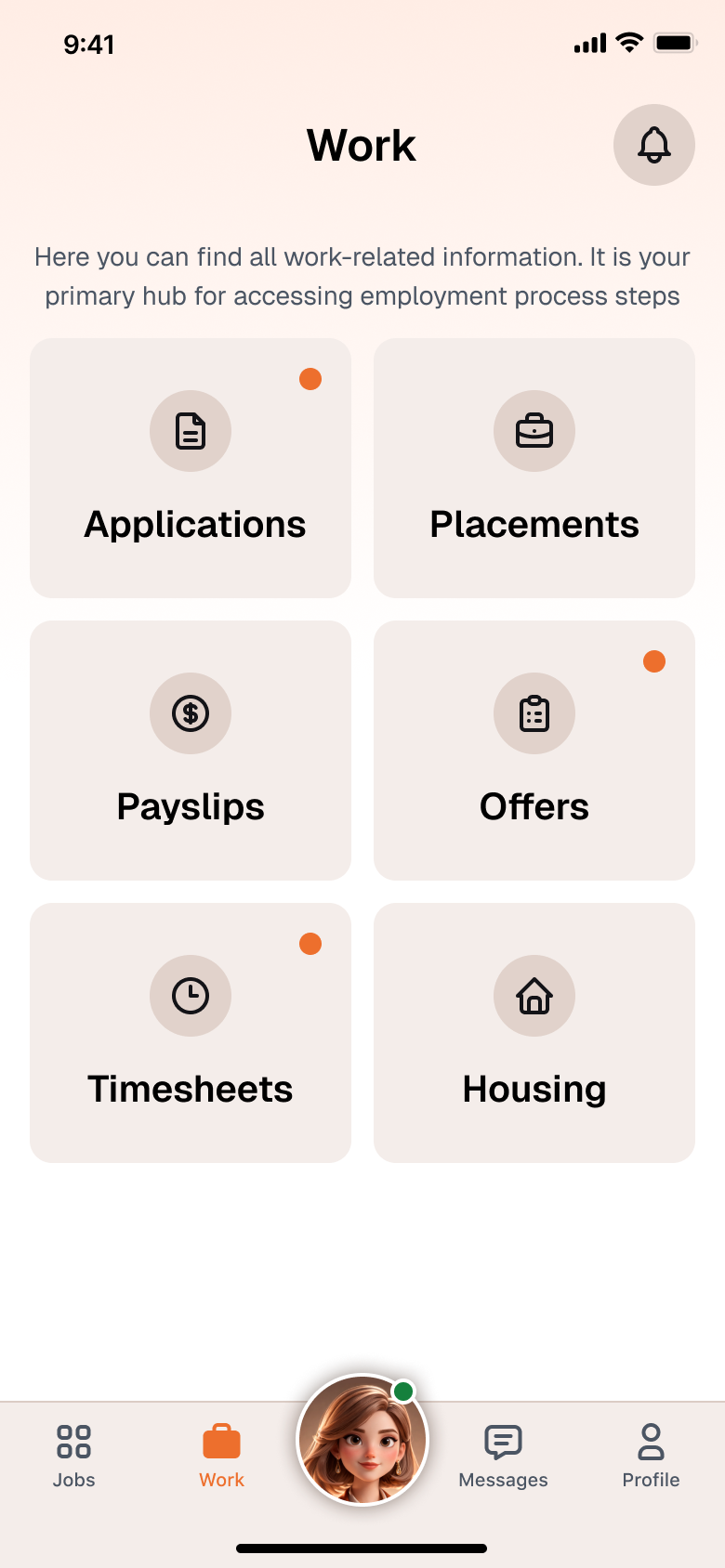
For this iteration, there is one entry point: a "Housing" tab or section within the Cruits app. Tapping it opens the listing list screen. There are no additional entry points (e.g., from job card, notifications) in Iteration 1.
The PRD defines the full worker-facing flow, but for Iteration 1 the scope is limited to: Housing section entry → list screen → detail screen (Story 2.4). Context handshake (Story 2.1), proximity filtering (Story 2.2b), and listing filters (Story 2.3) are deferred.
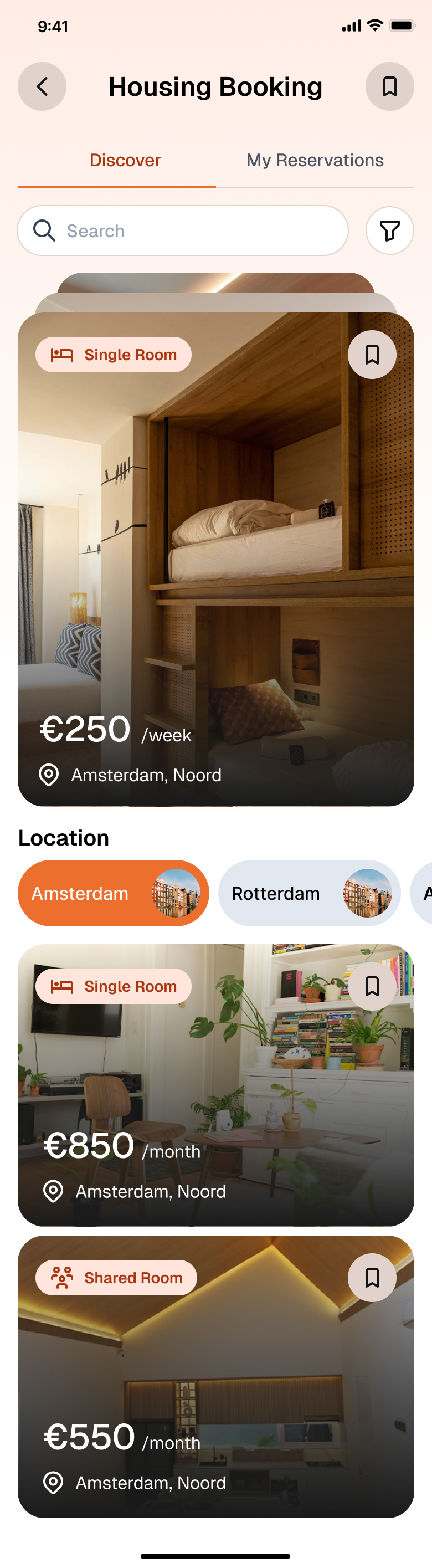
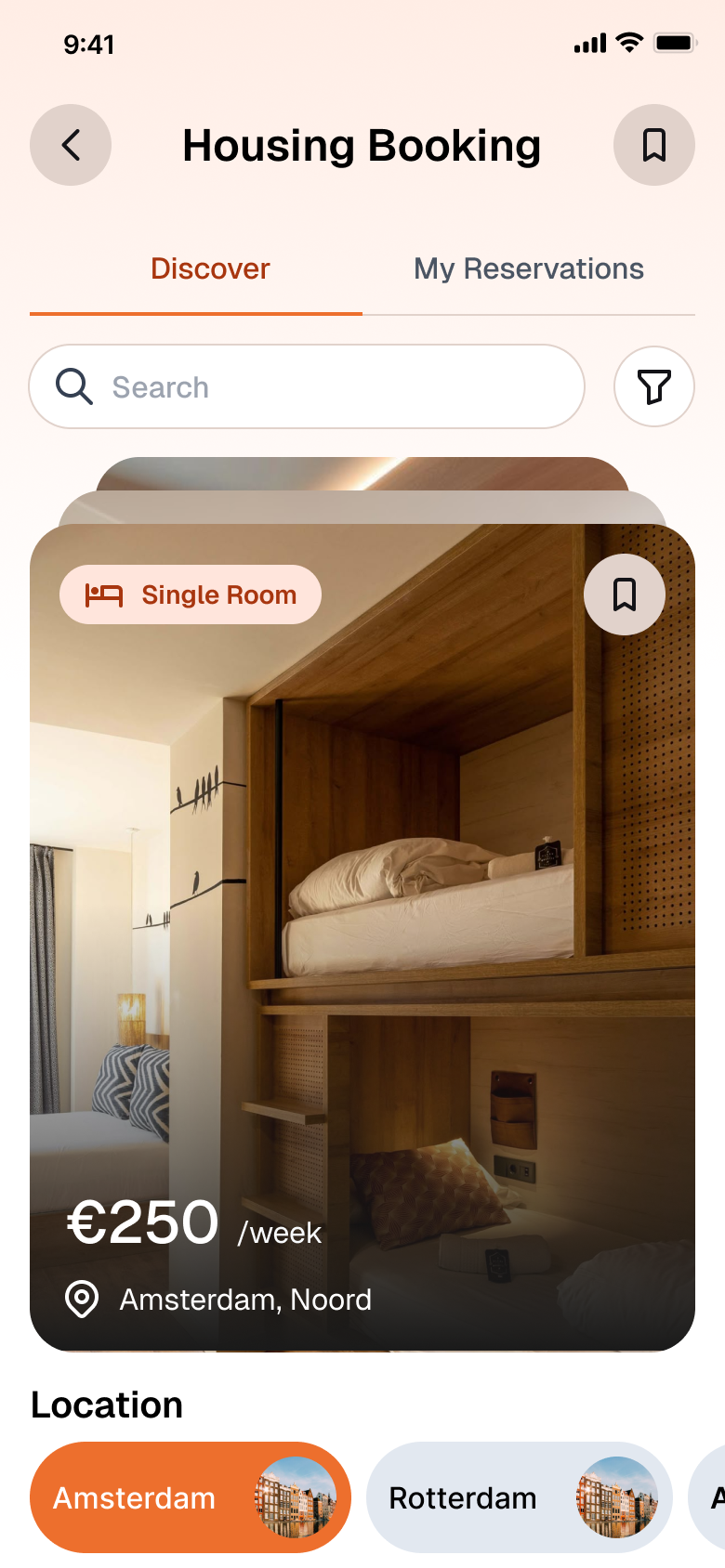
Figma: link
Acceptance Criteria¶
- Listing list — what is shown
- The listing list shows only active, non-deleted listings that have at least one photo (own listing photo or Building photo) and have at least one available slot.
- Listings that are fully booked are excluded from the list. The available slot count is a system-internal filter — it is not shown on listing cards. (In Iteration 1, all listings pass this filter because no reservations exist yet.)
-
The list uses infinite scroll (lazy load): an initial batch of results is shown on open; additional results load automatically as the user scrolls to the bottom. There is no numbered page navigation.
-
Listing card content
-
Each listing card displays:
- Hero photo (the designated hero image; always a photo, never a video)
- Title
- Type badge:
bed→ "Shared Room";private_room→ "Single Room" - Location: "[City], [Neighbourhood]" when neighbourhood is set; "[City]" when not set
- Weekly price in Euro (€), normalized from the listing's native price and period unit for fair comparison
- Distance from job site: shown as blank / not available in this iteration
-
Access control
-
Only authorized Cruits integration clients can access the listing list. Unauthenticated access is denied.
-
Performance
-
The initial batch of listings should be delivered within 500 ms.
-
Cruits app — Housing entry point and list screen
- The Cruits app has a "Housing" tab or button that navigates to the listing list screen.
-
Tapping a listing card navigates to the listing detail screen (Story 2.4).
-
No context filtering in this iteration
- No job location filtering. No proximity sort. No booking context enforcement.
- Distance from job site is present in the data model but shown as blank in this iteration.
Dependencies¶
- Story 1.6 (ListingUnit entity and data).
- Story 1.8 (pricing fields present).
- Story 1.3 / 1.4 (authentication and access control — integration client credentials required).
Out of Scope¶
- Proximity-based sort (Story 2.2b — deferred).
- Listing filters (Story 2.3 — deferred).
- Booking context enforcement (Story 2.1 — deferred).
- City/location filter chips (the "Location" section with city tabs visible in the Figma designs) — belongs to Story 2.3 (deferred). Design note: remove the Location filter chip section from Iteration 1 designs.
- Bookmark / save listing icon on listing cards — see FR-86 (post-MVP / Nice to Have).
Story 2.4: Listing Detail View¶
Epic: Epic 2 — Worker Housing Discovery & Context Handshake
User Story¶
As a Flexworker, I want to view the full details of a listing — photos, description, room type, price per period, distance to my job site, and available unit count or unit identifiers — So that I have all the information I need to make an informed decision before creating a reservation.
Functional Requirements Covered¶
| FR | Requirement |
|---|---|
| FR-49 | Flexworker views listing detail: media, title, description, room type, price per period, distance to job site (blank in this iteration), available count, capacity |

Acceptance Criteria¶
- Listing detail — content
- The listing detail view displays full information for a single active listing:
- Full media gallery: all photos and videos (own listing media; Building media as fallback). Photos show as images; videos show with a Play button. The hero photo appears first.
- Title
- Type badge ("Single Room" or "Shared Room")
- Location (city + neighbourhood if set)
- Original price and period unit in Euro (€) as set by the Provider (e.g., "€10 / day" or "€70 / week")
- Minimum stay
- Capacity (maximum occupants)
- Room area in m² (shown if set by Provider)
- Description
- All amenities as tags
- Distance to job site: shown as blank in this iteration
-
The listing detail is also accessible via Integration API and returns the same content.
-
Not found / inactive listings
- If the requested listing does not exist or is inactive, the system responds with "not found."
-
Active listings without photos can be accessed directly via Integration API (they are excluded from the discovery list, so in normal app use this case is unreachable by tapping a card).
-
Access control
-
Same access rules as Story 2.2a: authorized Cruits integration client credentials required. Unauthenticated access is denied.
-
Cruits app — Listing detail screen
- The detail screen shows: photo gallery (all photos), title, type badge, location, original price + period unit, capacity, room area in m² (if set), description, amenity tags.
- A "Reserve" button is visible but disabled in this iteration (reservation flow is Story 3.2, deferred). Button label: "Booking coming soon" — or hidden entirely; implementation decision.
Dependencies¶
- Story 1.6 (ListingUnit entity).
- Story 1.8 (pricing fields).
- Story 2.2a — navigation from list screen; can be implemented in parallel.
Out of Scope¶
- Distance to job site (Story 2.1 / 2.2b — deferred).
- Reservation creation (Story 3.2 — deferred).
- Availability calendar display (Story 1.7 — deferred).
- Room count / bedroom label ("1BR") — not in data model; see §9 Post-MVP in PRD. Design note: remove the "Rooms / 1BR" stat from the listing detail stat row; add capacity instead.
- House rules & restrictions section — see FR-85 (Nice to Have, post-MVP). Design note: remove the "House Rules" section from listing detail designs.
- Ratings & Reviews — see FR-87 (post-MVP).
- "Message Housing Manager" button on listing detail — messaging is scoped to the booking status view per FR-54 (Story 9.2).
Summary Table¶
| Story | Epic | FRs | Deliverable |
|---|---|---|---|
| 1.1 | Epic 1 | — | Backend service running (developer-defined) |
| 1.2 | Epic 1 | — | Provider Admin frontend initialized (developer-defined) |
| 1.3 | Epic 1 | FR-65, FR-66, FR-68, FR-69 | Authentication + identity store + Resident auto-create |
| 1.4 | Epic 1 | FR-67, FR-73 | Role-based access control + data isolation |
| 1.6 | Epic 1 | FR-1–5, FR-29 (Listings) | ListingUnit CRUD + Provider Admin Listings screen |
| 1.8 | Epic 1 | FR-6, FR-9, FR-29 (Pricing) | Pricing config per listing + Price History log |
| 1.10 | Epic 1 | FR-6, FR-29 (Settings) | Provider Settings screen — default period unit |
| 2.2a | Epic 2 | FR-10, FR-47 (partial) | Listing list API + Cruits app Housing entry point + list screen |
| 2.4 | Epic 2 | FR-49 | Listing detail API + Cruits app detail screen |
Deferred from Iteration 1:
| Story | Title |
|---|---|
| 1.5 | GDPR Consent & Anonymisation |
| 1.7 | Availability Calendar |
| 1.9 | Payment Terms Configuration |
| 2.1 | Context Handshake & Booking Context Enforcement |
| 2.2b | Proximity-Based Discovery |
| 2.3 | Listing Search & Filters |